
One-way audio is one of the most common and most frustrating issues in VoIP, but the good news is that it's almost always fixable, and it's rarely a problem with a softphone or a phone system itself.
In this guide, we'll walk through the most common causes of one-way audio on Windows and Mac desktop softphones and show you how to fix them based on real cases from our support team.
Note: While this guide addresses one-way audio issues with the Ringotel app, its core concepts apply to any SIP softphone.
Quick checklist: Confirm the microphone works in the operating system, check app microphone permissions, verify the correct input device is selected, test without a USB hub or docking station, and confirm outbound UDP RTP access to Ringotel server IPs before collecting logs.
The Scenario
A reseller recently contacted us about a user who had just installed the Ringotel desktop app on her Windows PC alongside the mobile app. The mobile app worked perfectly - calls were crystal clear in both directions. But on the desktop, the other party couldn't hear her at all.
She'd already checked the audio settings in the app. Everything looked correct. So what was going on?
Divide and conquer
Before diving deeper into troubleshooting, narrow down the possible causes instead of investigating every scenario, which can produce false leads.
Before reviewing logs, determine whether the problem affects one user, one device family, one direction, or the whole organisation. This determines where to look next.
Who cannot hear whom?
“Caller cannot hear callee” and “callee cannot hear caller” point to different media directions.
Does it happen on one device type or all devices?
If Android only, Windows only, or iPhone only, suspect local device/audio handling first. If all devices are affected, suspect PBX or network path.
Is it inbound or outbound only?
Outbound-only issues often point to codec, endpoint, or media negotiation problems.
Does this issue occur only when connected to a specific network?
If the issue occurs only on a specific network, for example it works on office Wi-Fi or mobile data but not on home Wi-Fi, suspect the user's network configuration.
Understanding call legs
A call leg is a logical connection between two communication endpoints, such as a softphone app and a PBX server.
In a typical scenario, a phone call consists of at least two call legs:
- Leg A: The initial connection between the caller and the VoIP server.
- Leg B: The secondary, forwarded, or outbound connection to the destination device.
For example:
- Leg A: Softphone app → PBX server.
- Leg B: PBX → Cloud Provider or SIP Trunk Carrier.
In a more sophisticated example, or in case of a Ringotel connection, there is also a Media Proxy or Session Border Controller (SBC) between a Softphone app and a PBX system:
- Leg A: Ringotel app → Ringotel server.
- Leg B: Ringotel server → PBX server.
- Leg C: PBX server → Cloud Provider or SIP Trunk Carrier.
[Ringotel app] ↔ [Ringotel server/SBC] ↔ [PBX server] ↔ [Carrier]
Understanding call legs is essential for debugging VoIP issues. If you trace the call segment by segment, it becomes much easier to isolate exactly where the issue occurs, which greatly helps with troubleshooting.
Determine the problematic call leg
Understanding which leg is missing audio is crucial when determining the cause of the problem.
To help determine where audio is missing, ask the user to enable call recording on both the PBX extension and softphone side. Then advise the user to make a test call and replicate the issue.
Ask for two clear call examples: caller, callee, approximate time, and device. One example is helpful, but two makes pattern recognition much easier.
Once you have call recordings, determining which call leg lacks audio is easier. For example, if the PBX call recording contains audio both ways but the softphone recording has no microphone audio, examine the logs between the softphone and PBX. If the PBX recording also lacks audio, the issue may lie with the upstream carrier or a media negotiation problem.
Let’s dive in
Now that we've set the stage, let's dive into it. This guide focuses on troubleshooting one-way audio issues in the desktop app for PC or Mac. We’ll describe troubleshooting of similar issues on mobile apps in future articles.
Why does this happen?
One-way audio on a desktop app often points to a local audio capture problem on the computer, or to NAT and firewall traversal. The call is connecting normally (SIP signalling is fine), but the microphone audio may not be making it into the RTP stream that gets sent to the other party.
The most common local audio culprits:
- Operating system privacy settings blocking microphone access
- Outdated or conflicting audio drivers
- Wrong default communication device or input device
- USB headset connection issues
- Another application or audio enhancement tool intercepting the microphone
Network and firewall issues, including RTP port restrictions and VPN interference, are covered separately below.
Step-by-Step fix
1. Test the Microphone in the Operating System
Start with the fastest check: confirm the operating system can capture microphone audio before changing app or PBX settings.
- Windows: Go to Settings → System → Sound → Input and use the microphone test, or record a short sample in Sound Recorder.
- Mac: Go to System Settings → Sound → Input and verify that the input level moves while speaking.
If the OS cannot detect microphone input, fix the local device, permissions, or headset issue first.
2. Check Windows Microphone Privacy Settings
This is the #1 cause we see on Windows. Windows can silently block desktop apps from accessing the microphone even when everything looks fine in the app itself.
Go to: Settings → Privacy & Security → Microphone
Verify all three toggles are ON:
- ✅ Microphone access
- ✅ Let apps access your microphone
- ✅ Let desktop apps access your microphone ← this is the one people miss
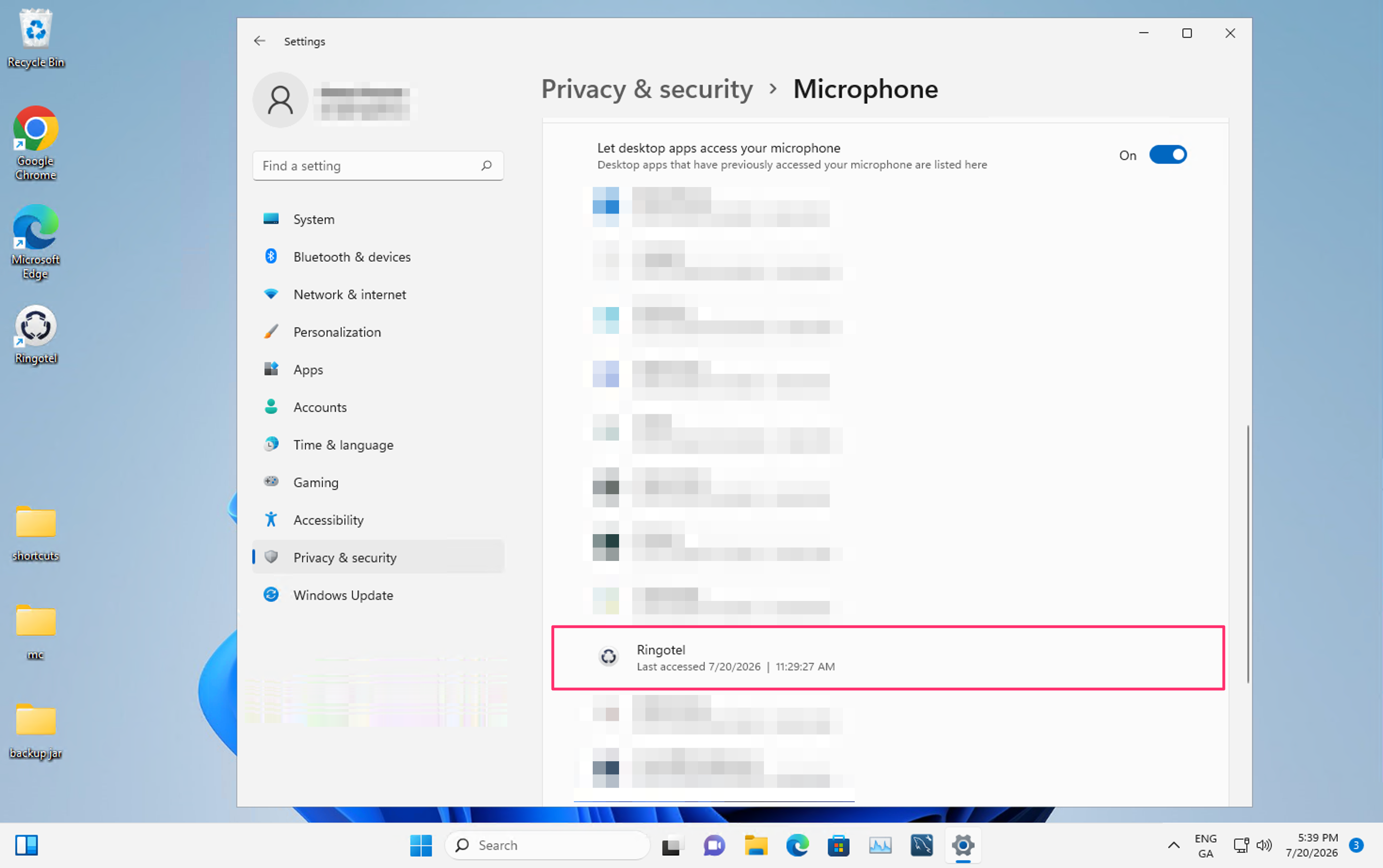
💡 Pro tip: Scroll to the bottom of this page. You should see Ringotel listed under "Desktop apps that have accessed your microphone." If it's not there, the app has never successfully captured audio.
3. Check Mac Microphone Privacy Settings
On macOS, the Ringotel desktop app must be allowed to access the microphone.
Go to: System Settings → Privacy & Security → Microphone
Make sure Ringotel is enabled. If you change this setting, restart the Ringotel app and test again.
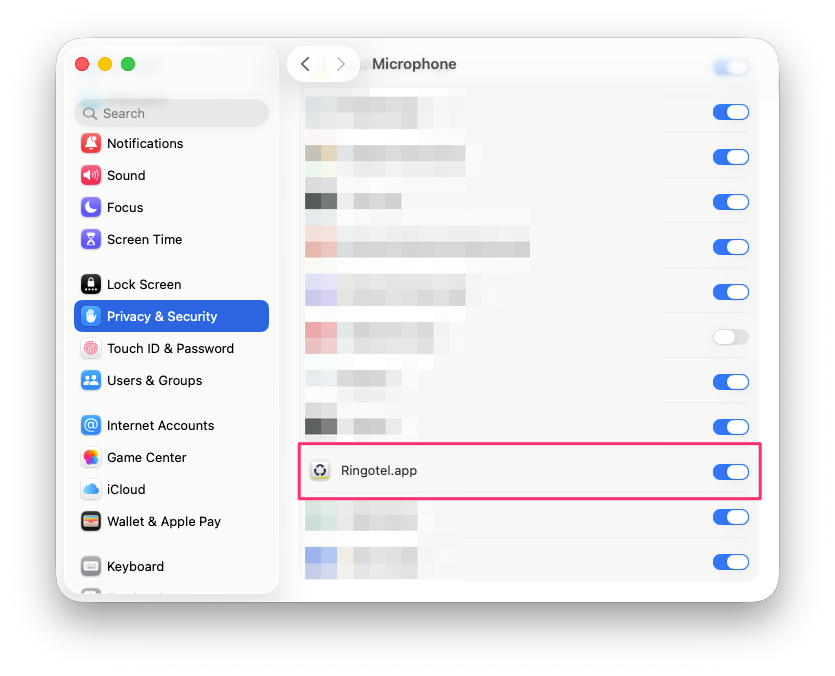
💡 If Ringotel does not appear in the list, start or restart the app and place a test call so macOS prompts for microphone access.
4. Update your audio drivers
Outdated Realtek, Intel Smart Sound, or headset-specific drivers are a frequent cause of silent microphone capture - especially after Windows updates.
Update these:
- Realtek Audio: realtek.com/Download
- Logitech headsets: Logi Tune
- Jabra headsets: Jabra Direct
- Poly/Plantronics: Poly Lens
For laptops (Dell, HP, Lenovo), download the audio driver from the manufacturer's support page rather than generic Realtek.
After updating, restart your computer before testing again.
5. Set the correct Default Communication Device
Windows distinguishes between a "default sound device" (for music, videos) and a "default communication device" (for calls). Your softphone uses the communication device.
Go to: Settings → System → Sound
- Click the arrow > next to your headset/microphone
- Under General, make sure the device is allowed (not restricted)
- Set it as "Use as default for communication"
On Mac, confirm the same device is selected under System Settings → Sound → Input, and also check the selected input device in the Ringotel app.
6. Check your USB connection
If you're using a USB headset:
- Connect it directly to a USB port on the PC or Mac - not through a hub or docking station
- Try a different USB port
- Test with a different headset to rule out hardware failure
7. Check for other apps and Audio Enhancements
Other communication or audio-processing apps can hold, mute, or alter microphone input.
- Close other VoIP or meeting apps such as Teams, Zoom, Webex, or softphones before testing.
- Temporarily disable audio enhancement tools such as Krisp, NVIDIA Broadcast, headset vendor noise suppression, or Windows Audio Enhancements.
- Restart Ringotel after changing these settings.
8. Verify RTP port ranges
Ensure your firewall allows UDP traffic on the specific ports used for audio. While regular SIP endpoints usually use ports 5060 or 5061 for SIP signaling, Ringotel uses the standard HTTPS port 443, which is open in most networks. However, RTP audio uses a wide range of UDP ports. In Ringotel this range is 1024–65535 (UDP) and must be open for users (for outbound connection only) to the following IP addresses:
75.2.52.102, 99.83.156.227, 15.197.206.93, 3.33.240.193 + IPs linked to the Ringotel region where the user’s Ringotel organization was created.
9. Check VPN or Restricted Networks
VPNs, guest Wi-Fi, hotel networks, and strict corporate firewalls can block or rewrite UDP/RTP traffic. If one-way audio happens only on a specific network, test again with the VPN disconnected or from another network such as mobile hotspot. If the issue disappears, focus on the network path and firewall rules rather than the softphone.
10. (Advanced) Disable Exclusive Mode
Some applications grab exclusive control of the audio device, preventing other apps from capturing audio.
- Go to: Settings → Sound → Advanced → More sound settings
- Select your headset → Properties → Advanced tab
- Uncheck: "Allow applications to take exclusive control of this device"
Restart the Ringotel app after making this change.
How to confirm it's a local audio issue (not a network problem)
If you're technically inclined or helping a user remotely, here's what to look for in the user’s device logs:
Session details:ssrc=1583476153 mjit=93 frac=0 ... packets=1492 ... codec=0 ... octets=238720 ... lost=0
If you see packets being sent (non-zero packets and octets) and the From= field shows the Ringotel server IP, that means the server is sending audio to the user successfully. If the other party still can't hear, the problem is on the capture/send side - i.e., the user's microphone isn't feeding audio into the outbound RTP stream.
Key indicators of a local audio issue:
- RTP present in one direction only
- Far fewer packets sent than expected for the call duration
- Missing or abnormal recorder/open/start events in logs
When it's NOT a local audio issue
If the steps above don't resolve it, the problem may be elsewhere:
Codec mismatch with the PBX - Try disabling all audio codecs except one G.711 variant: G.711 U-law in North America, or G.711 A-law in most other regions.
Network/firewall blocking RTP - Ensure 1024–65535 (UDP) is open outbound to Ringotel server IPs.
VPN interference - Some VPNs do not pass UDP/RTP correctly or route media through a restricted path.
PBX media renegotiation bug - Particularly common with Asterisk v13 (a known codec selection bug).
The Resolution
In our original case, the user's Windows microphone privacy setting for desktop apps was disabled. After enabling the privacy toggle, and restarting - full two-way audio was restored. Total fix time: under 5 minutes.
Key Takeaways
- Start with OS-level microphone capture and privacy permissions before reviewing PBX settings.
- Narrow the issue by user, device type, call direction, and network.
- Use call recordings and logs to identify which call leg is missing audio.
- Confirm outbound UDP RTP access to Ringotel server IPs using 1024–65535 (UDP).
- When in doubt, collect two clear call examples and app logs before escalating.
Have a VoIP audio issue that doesn't fit these steps? Contact Ringotel Support - we're happy to dig into the logs with you.
Want to see how Ringotel works for your business? Book a demo or get in touch with our team.